Importing Yamtrack Watch History into Silo with a Read-Only Plugin
I setup Silo earlier this week. I wanted to sync my watch history, but with Traktv completely crippling their API without a membership, I’ve been hosting Yamtrack for a while now.
So, I wanted my existing Yamtrack watch history into Silo, including movies, individual episodes, rewatches, TMDB identifiers, and watch dates. The safest design I could think of was just a read-only one-way Silo watch-sync plugin backed by a PostgreSQL account that physically could not modify Yamtrack.
The flow looks like this:
1
2
3
4
5
6
7
8
9
Yamtrack PostgreSQL
        │
        │ SELECT only
        ▼
Silo Yamtrack plugin
        │
        │ ListRemoteState()
        ▼
Silo watch-sync service
Yamtrack remains authoritative. The plugin never issues INSERT, UPDATE, or DELETE, and the database role receives no write privileges.
Silo is being actively developed and isn’t done. Here’s the current state of my apps:
- Yamtrack v0.25.3 using PostgreSQL;
- Silo with
watch_sync_provider.v1support fromsilo-plugin-sdkv0.13.0; - Docker Compose;
- movies and individual TV episodes identified through TMDB.
What works
The plugin imports:
- completed movies
- watched episodes
- movie and episode play counts
- rewatches
- last-watched timestamps
- TMDB movie IDs
- TMDB series IDs plus season and episode numbers
It intentionally does not import paused playback positions, ratings, notes, favorites, or watchlists. It also cannot export watched changes, remove Yamtrack history, or scrobble playback. The provider advertises import-only capabilities to Silo, and the PostgreSQL role provides a second independent safety boundary.
Downloads
Check the Docker host’s architecture:
1
uname -m
Then download the matching Silo plugin archive:
Here are some SHA-256 checksums for you:
1
2
3
4
5
cffd725d8c71248a5325a4fd9b796f8f75dadeeae200786fd98e43ae5cfad796  silo-yamtrack-watchsync-linux-amd64.zip

051a0653dcdab1049b1d7376cee6954ce093cdab3de5f5d4fde2c110f40d2b92  silo-yamtrack-watchsync-linux-arm64.zip

e68dc8ea80b71855a6841c1047303869d5598b9470d4fa09d679c300f505e51f  silo-plugin-yamtrack-milestone-3-source.zip
Verify a download with:
1
sha256sum silo-yamtrack-watchsync-linux-amd64.zip
Before starting
You will need:
- Access to Yamtrack’s PostgreSQL administrator account
- Silo administrator access
- The numeric Yamtrack user ID whose history should be imported (mine was 1)
- A backup of Silo if it already contains important watch-state data
The plugin cannot alter Yamtrack, but a successful sync does change watched state in the selected Silo profile. Start with one profile and spot-check the result.
1. Create a read-only Yamtrack role
Choose a new, randomly generated password. Do not reuse Yamtrack’s application password.
Create a file named create-readonly-role.sql:
1
2
3
4
5
6
7
8
9
10
11
12
CREATE ROLE silo_sync WITH LOGIN PASSWORD 'CHANGE_ME_TO_A_STRONG_PASSWORD';

GRANT CONNECT ON DATABASE yamtrack TO silo_sync;
GRANT USAGE ON SCHEMA public TO silo_sync;
GRANT SELECT ON TABLE
    public.app_item,
    public.app_movie,
    public.app_season,
    public.app_episode
TO silo_sync;

-- Intentionally no INSERT, UPDATE, or DELETE grants.
Run it through the Yamtrack database container. Replace the container, administrator, and database names if your deployment differs:
1
2
3
docker exec -i yamtrack-db \
  psql -U yamtrack -d yamtrack \
  < create-readonly-role.sql
Expected output resembles:
1
2
3
4
CREATE ROLE
GRANT
GRANT
GRANT
If the role already exists, rotate its password instead of trying to create it again:
1
2
3
docker exec -it yamtrack-db \
  psql -U yamtrack -d yamtrack \
  -c "ALTER ROLE silo_sync WITH PASSWORD 'A_NEW_STRONG_PASSWORD';"
Keep the password private. If it appears in a screenshot, terminal transcript, issue, or chat, rotate it. The role is read-only, but credential hygiene still matters.
2. Find the Yamtrack user ID
Open PostgreSQL:
1
2
docker exec -it yamtrack-db \
  psql -U yamtrack -d yamtrack
Then run:
1
2
3
4
5
6
7
8
SELECT user_id, COUNT(*) AS tracked_rows
FROM (
  SELECT user_id FROM app_movie
  UNION ALL
  SELECT user_id FROM app_season
) x
GROUP BY user_id
ORDER BY tracked_rows DESC;
For a single-user installation, the result is often:
1
2
3
 user_id | tracked_rows
---------+-------------
       1 |        ...
Record the numeric ID. This guide uses 1.
3. Confirm the Docker network name
List the networks attached to Yamtrack’s database container:
1
2
docker inspect yamtrack-db \
  | jq -r '.[0].NetworkSettings.Networks | keys[]'
Use the exact result. In my installation, the network is named yamtrack, not yamtrack_yamtrack.
You can confirm it directly:
1
docker network inspect yamtrack
4. Run the diagnostic first
The diagnostic is optional but strongly recommended. It validates the connection, expected Yamtrack v0.25.3 schema, user ID, TMDB identities, play counts, and timestamps before Silo changes anything.
Extract the source package:
1
2
unzip silo-plugin-yamtrack-milestone-3-source.zip
cd silo-plugin-yamtrack
Export the read-only password and actual Docker network:
1
2
export YAMTRACK_SYNC_DB_PASSWORD='THE_silo_sync_PASSWORD'
export YAMTRACK_DOCKER_NETWORK='yamtrack'
If you previously exported the wrong network name, overwrite it as shown above. An exported shell value takes precedence over the Compose file’s default.
Build and run:
1
2
3
4
docker compose -f compose.example.yml build

docker compose -f compose.example.yml run --rm \
  yamtrack-sync-diagnose
Expected output looks like:
1
2
3
4
5
6
7
8
9
10
11
12
Connected to Yamtrack PostgreSQL ✓
Schema matches Yamtrack v0.25.3 expectations ✓
Yamtrack user ID: 1 ✓

Movies:   3229 unique watched, 7068 total plays, 3839 rewatches
Episodes: 18959 unique watched, 34552 total plays, 15593 rewatches

Recent movies (up to 10)
  Example Movie  TMDB=12345  plays=2  last=2026-08-01T20:00:00Z

Recent episodes (up to 10)
  Example Series  S02E03  TMDB=67890  plays=1  last=2026-08-02T21:00:00Z
Your counts will differ. Compare several recent records and at least one rewatched title with Yamtrack’s interface. This is how we caught semantic errors before letting Silo consume the data.
You can also save the complete normalized dataset locally:
1
2
3
docker compose -f compose.example.yml run --rm \
  yamtrack-sync-diagnose --json \
  > yamtrack-watch-state.json
There is nothing you need to do with the JSON file, it just contains your complete viewing history.
5. Put Silo on the Yamtrack network
The plugin runs inside Silo’s container network namespace. Silo must therefore be able to resolve yamtrack-db.
For a temporary test, attach the running Silo container:
1
docker network connect yamtrack YOUR_SILO_CONTAINER
For a durable configuration, add the existing external network to the Silo service in Silo’s Compose file:
1
2
3
4
5
6
7
8
9
10
11
services:
  silo:
    # Keep the rest of your existing Silo configuration.
    networks:
      - default
      - yamtrack

networks:
  yamtrack:
    external: true
    name: yamtrack
Use the actual Silo service name if it is not silo, then recreate that service normally. Do not create a second network with a similar name; both Silo and yamtrack-db must share the same network.
6. Upload the plugin to Silo
Open Admin → Plugins in Silo and upload the architecture-specific zip from the Community Plugins tab in the Manual section.
The archive contains exactly the two root entries Silo expects:
1
2
manifest.json
plugin
The manifest checksum is tied to that exact binary. Don’t unzip, modify, and recompress the archive before uploading it.
The plugin should appear as Yamtrack Watch Sync and expose one watch_sync_provider.v1 capability.
7. Configure the installed plugin
Open the plugin’s administrative configuration and enter:
1
2
3
4
5
6
Host:                    yamtrack-db
Port:                    5432
Database:                yamtrack
Read-only database user: silo_sync
SSL mode:                disable
Yamtrack user ID:        1
Do not place the PostgreSQL password in these global settings. The password goes into your user’s profile in the next step.
8. Connect the Silo profile
Do not use Admin → API Keys. That page generates credentials for clients accessing Silo itself.
Instead, open:
Profile → Settings → Watch Providers
Or navigate directly to:
1
/settings/watch-providers
Find the Yamtrack card and click Connect. Silo displays a password-style field labeled API key. For this local provider, paste the password belonging to the read-only silo_sync PostgreSQL role.
Silo encrypts the credential for the profile. The plugin receives it transiently, confirms that PostgreSQL accepts it, validates the expected schema and Yamtrack user ID, and returns the account identity to Silo.
When it succeeds, the card shows Connected:
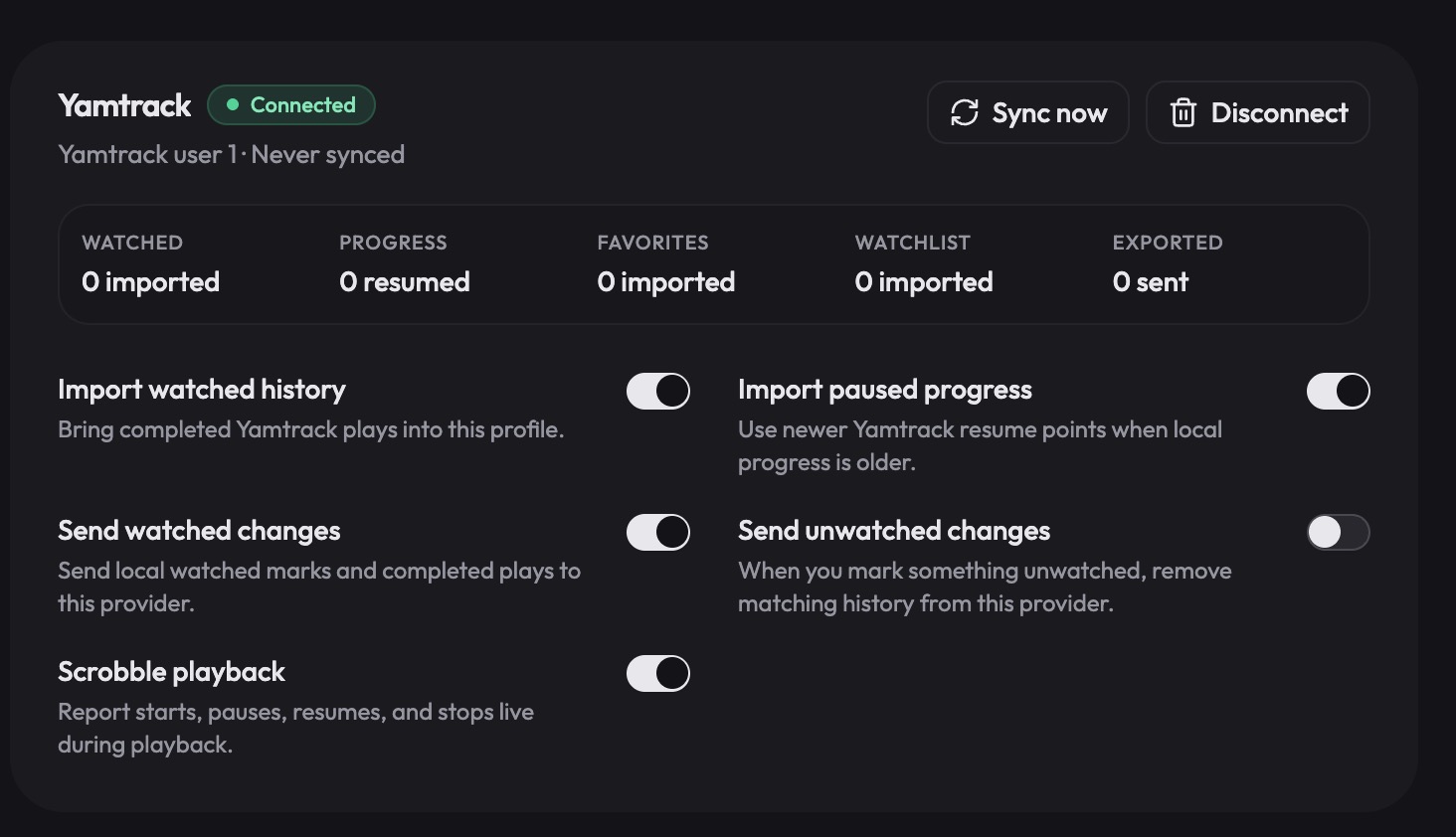
9. Run the first sync
Click Sync now once.
The initial traversal is a complete snapshot divided into pages of at most 100 records. A library with about 22,000 unique watched items requires roughly 220 pages, but on a local Docker network it still finishes pretty darn quickly (a couple minutes).
The plugin returns stable provider keys and absolute play counts.
After a successful run, the card should show a nonzero Watched imported count while progress, favorites, watchlists, and exported records remain zero:
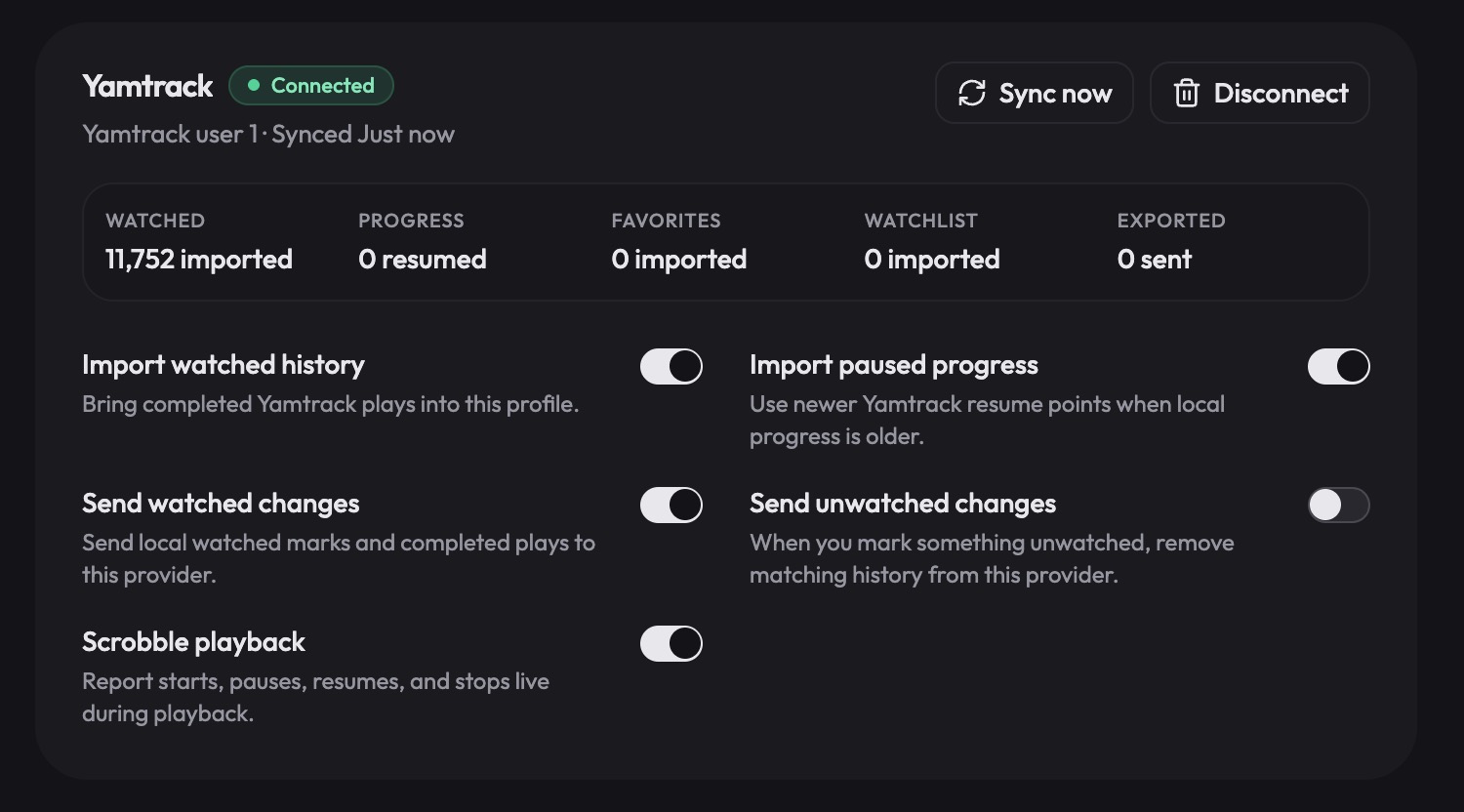
The number imported by Silo may be lower than the diagnostic’s normalized total. Silo can only apply records it successfully matches to its catalog. Spot-check recent titles, older titles, several episodes, and a few heavily rewatched items before considering the migration validated.
What happens on later syncs?
Version 0.2.0 performs another complete snapshot each time. This is intentional for the initial release.
The full traversal:
- remains read-only against Yamtrack
- is idempotent in Silo
- captures corrected historical dates
- captures changed play counts
- avoids cursor edge cases
- was fast enough for a library of more than 22,000 unique records in testing
Incremental synchronization would reduce database reads, but it would also need careful handling for edited or removed historical records. Full snapshots are a reasonable default until performance becomes a real problem.
Troubleshooting
missing go.sum entry for module providing package github.com/jackc/pgx/v5/stdlib
Use the source archive linked above. It includes the generated go.sum, and its Dockerfile copies both go.mod and go.sum before downloading dependencies.
If an older extracted directory is still being used, replace it and rebuild:
1
docker compose -f compose.example.yml build --no-cache
network yamtrack_yamtrack declared as external, but could not be found
An old environment variable is probably overriding the Compose default:
1
2
3
4
export YAMTRACK_DOCKER_NETWORK='yamtrack'

docker compose -f compose.example.yml config \
  | grep -A3 '^networks:'
The rendered configuration should show:
1
2
3
4
networks:
  yamtrack:
    name: yamtrack
    external: true
Also check for an outdated value in .env:
1
grep YAMTRACK_DOCKER_NETWORK .env 2>/dev/null
Yamtrack does not appear under Watch Providers
Confirm that:
- the plugin is installed and enabled under Admin → Plugins;
- its configuration has been saved;
- your Silo release supports
silo-plugin-sdkv0.13.0 andwatch_sync_provider.v1; - the plugin status shows no startup or manifest error.
The Connect button fails
Check that the Silo container—not merely the diagnostic container—is attached to the yamtrack network:
1
2
docker inspect YOUR_SILO_CONTAINER \
  | jq -r '.[0].NetworkSettings.Networks | keys[]'
Then confirm:
- the host is
yamtrack-db; - the database is
yamtrack; - the user is
silo_sync; - the selected Yamtrack user ID exists;
- the password is current;
- the four
SELECTgrants are present.
The import count is lower than the diagnostic count
The diagnostic reports normalized Yamtrack records. Silo reports records it imported into the profile. Catalog availability and matching can make the latter smaller. Verify specific TMDB IDs and SxxExx coordinates rather than judging success from one aggregate number.
PostgreSQL reports permission denied
Reapply only the connection, schema-usage, and four table-select grants from the role setup. Do not grant broad schema privileges and do not grant writes.
Why direct PostgreSQL access is acceptable here
Direct database integration is normally more fragile than an official API because migrations can change table or column names. The mitigation is to keep the adapter narrow and fail closed:
- it verifies every required table and column before reading;
- it targets a specific Yamtrack release schema;
- it uses only four application tables;
- it refuses to operate without the expected structure;
- PostgreSQL itself blocks writes;
- the Silo provider advertises no outbound operations.
If Yamtrack later exposes a stable public watch-history API, that can replace the database adapter without changing the current Silo mapping.
Final result
That combination let me migrate a couple years of family viewing history—including a truly impressive number of Polar Express rewatches—without handing experimental code the ability to modify the source data.